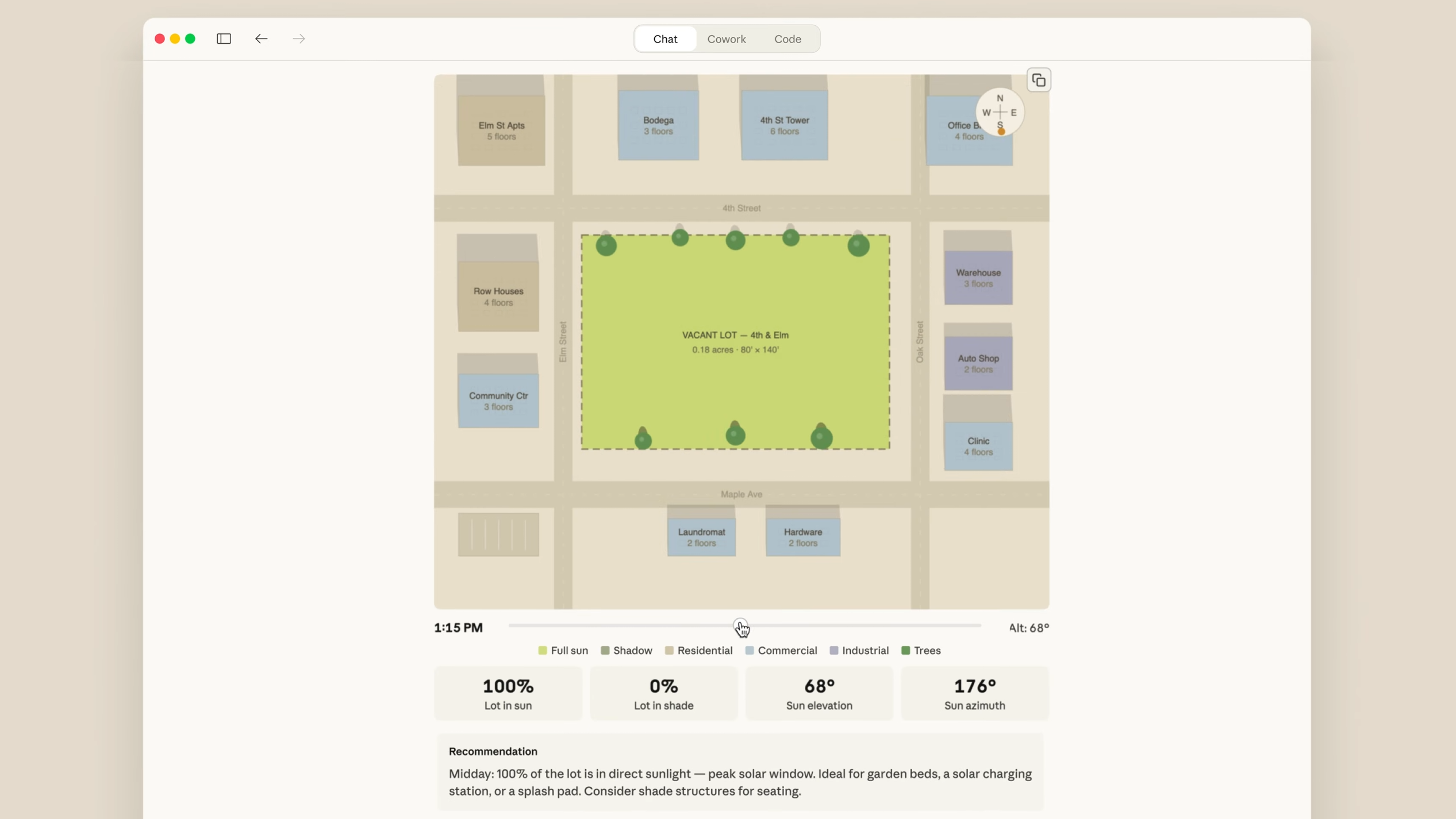
The era when "make me a table" was the limit of showing data? It's over. Now you can tell Claude "show me this as a chart," and an interactive chart gets drawn right inside the conversation. Hover to see values, click for details — that kind of chart.
What is this about?
On March 12, 2026, Anthropic publicly released a new Claude feature in beta. It's called Interactive Visuals. It's available to all users, including the free plan.
The core idea is simple. When Claude responds, it doesn't just give you text — it draws visual elements like charts, diagrams, and graphs directly inside the chat. Ask about compound interest and you get a curve graph. Ask about a decision-making structure and you get a tree diagram. Ask about the periodic table and you get an interactive table.
Technically, this isn't image generation (like DALL-E). It's built with HTML and SVG, so it loads fast, stays crisp when you zoom in, and supports interactions like hover and click. It's not downloading an image file — it's real-time rendering with web technology.
What's interesting is that Claude decides on its own when visualization would be helpful. Ask "how does compound interest work?" and it'll automatically draw a curve graph alongside the text explanation. Of course, you can also directly request "show me this as a chart."
How is this different from Artifacts?
Artifacts are standalone outputs that open in a side panel. They're saved, shareable, and persist after the conversation ends. Interactive visuals, on the other hand, exist temporarily within the conversation flow and evolve as the conversation develops. In short — Artifacts are "finished products," while inline visuals are more like "sketches during conversation."
What's actually changing?
Honestly, the attempt to show visualizations in AI chat isn't unique to Claude. OpenAI added a similar feature to ChatGPT on March 10, and Google is also experimenting with educational visuals in Gemini. So here's how they compare.
| Claude Artifacts | Claude Inline Visuals | ChatGPT Interactive | |
|---|---|---|---|
| Location | Side panel (separate space) | Inline within chat flow | Inline within chat flow |
| Persistence | Saved, shareable | Temporary, evolves with conversation | Temporary, evolves with conversation |
| Tech foundation | HTML/JS (full app) | HTML + SVG (lightweight) | HTML + JS |
| Interaction | Fully interactive | Hover, click, animation | Hover, click, drag |
| Auto-generation | On user request | Claude decides automatically | GPT decides automatically |
| Strengths | Complex apps/prototypes | Maintains conversation flow, quick understanding | Specialized in 70+ math/science concepts |
| Mobile | Web/app both supported | Desktop-first (iOS not supported) | Web/app both supported |
ChatGPT's interactive visualization launched 3 days before Claude's, but the approaches differ. ChatGPT focuses on 70+ pre-defined concept visualizations in math and science, while Claude aims for general-purpose visualization. Whether it's a compound interest graph, a project decision tree, or a recipe card — no topic is off limits.
And there's one feature unique to Claude: interactive multiple-choice questions. When Claude asks users structured questions, it shows clickable options instead of text. When asking "What programming language do you use?", buttons like Python, JavaScript, and Go pop up. It's a nice detail that makes the conversation feel more natural.
The essentials: How to get started
- Start a new conversation on claude.ai or the Claude app
Available to all users, including the free plan. No special settings or plugins needed — just start a conversation as usual. Note that it currently works best on desktop. - Ask a question that calls for visualization
Something like "Show me the GDP trend of the US over the past 10 years," "Draw a diagram of our team's decision-making process," or "Compare compound interest at 5%, 7%, and 10%." The key is questions with data or structure. If Claude thinks visualization would help, it'll automatically draw a chart. - Directly requesting works too
If Claude gave you a text-only answer but you want a visual, just follow up with "show me this as a chart," "organize this as a diagram," or "make this interactive." Conversely, if you don't want visuals, you can request text only. - Interact with the visualization
Hover over the generated chart to see detailed values, and click to expand more information. You can also modify a visualization with follow-up requests like "change the X-axis to years" or "add a legend." - Switch to Artifacts for complex outputs
Inline visuals are a tool for quick understanding during conversation. If you need a polished dashboard or prototype that you can save and share, ask "turn this into an Artifact." The two features are complementary.