
It used to take an hour to draw a single diagram. Now it takes 30 seconds.
Tell the AI "draw me a login flow" and it actually draws it — right inside the chat window.
What Is It?
Let's be honest — nobody enjoys drawing diagrams. You need flowcharts in planning docs, architecture diagrams in dev specs. The thought of opening a tool, placing rectangles one by one, and connecting arrows is enough to make you sigh.
Excalidraw just solved this problem. They launched an official MCP server.
Excalidraw is an open-source whiteboard tool that's been popular among developers for its signature hand-drawn sketch style. They combined it with MCP (Model Context Protocol), an AI integration standard.
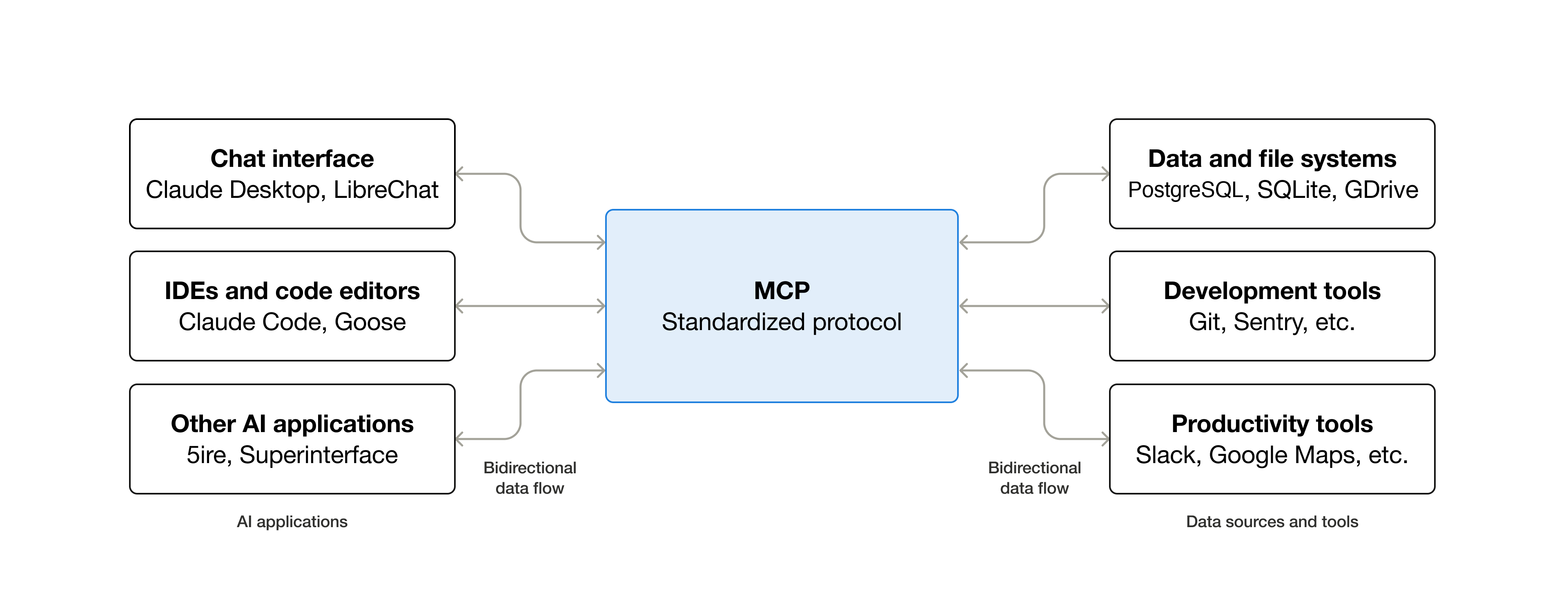
MCP is an open protocol created by Anthropic. Simply put, it's a standard that lets AI directly operate external tools. In January 2026, Anthropic and OpenAI jointly announced the MCP Apps extension spec, enabling interactive UI rendering directly inside AI chat. Excalidraw MCP is one of the flagship use cases for MCP Apps.
The origin story is pretty fun. An Anthropic engineer built a weekend prototype that caught the Excalidraw team's eye, and it was promoted to an official MCP server in less than a week. Harald Kirschner (VS Code team) even tweeted "from proof-of-concept to official MCP in under a week" in amazement.
The reception has been impressive. Over 2,400 GitHub Stars and 154 forks. It's MIT-licensed, so you can use it commercially without restrictions. A Medium reviewer called it "an extension of AI's reasoning capability into visual expression" and "a categorical shift in human-AI collaboration".
What's Different?
You could already use AI to create diagrams before — by generating Mermaid code or outputting SVG as text. But it was clunky.
| Traditional Approach | Excalidraw MCP | |
|---|---|---|
| Workflow | AI generates code → Check in separate renderer → Request changes → Regenerate | Tell the AI and it renders right in the chat |
| Editing | Manually edit code | Drag-and-drop in fullscreen editor |
| Revisions | AI can't see the output (drawing blind) | AI sees the canvas and makes targeted edits |
| Sharing | Export as image file | One excalidraw.com link and done |
| Time | 30 min – 1 hour | 1–5 minutes |
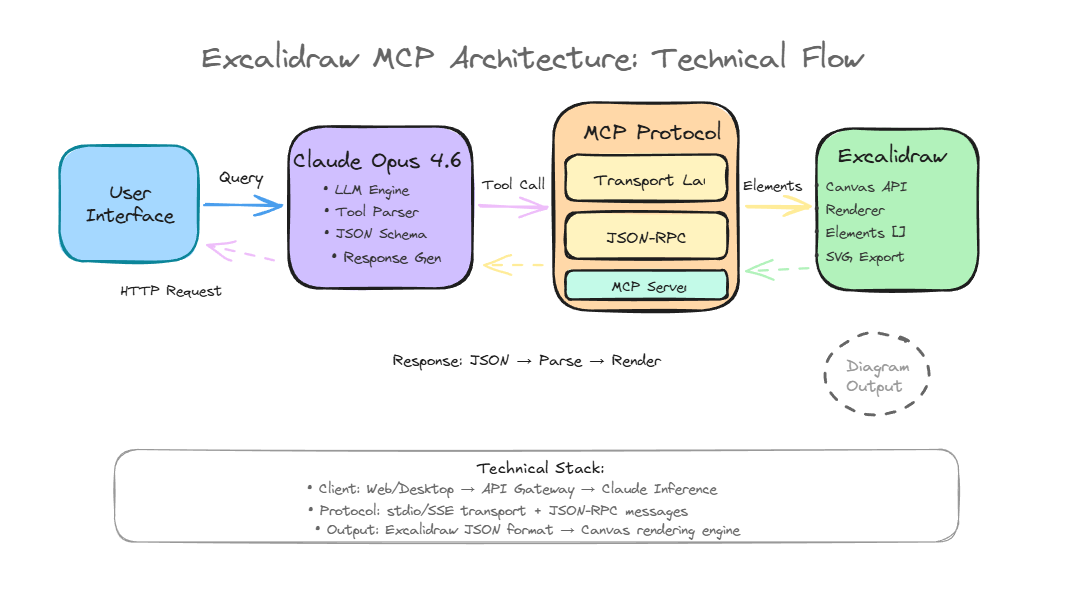
The key insight is that the AI can actually see what it drew. With tools like save_checkpoint and read_checkpoint, it can save and load the current state, making precise adjustments like "widen the spacing here" possible through conversation. Diagrams are drawn in a streaming fashion with smooth animations, so it feels like watching someone sketch on a whiteboard.
Skywork's technical analysis calls this the "Diagrams as Code" paradigm. Because the AI generates diagrams as editable code rather than pixel-based images, you can modify them later or even auto-update documentation in CI/CD pipelines.
Quick Start Guide
- Connect (the easiest way)
Claude.ai → Settings → Connectors → Search for "Excalidraw" and add it. That's it. - Test it
Send "Draw me a simple rectangle with Excalidraw." If a hand-drawn style rectangle appears in your chat, you're good to go. - Try a real prompt
Try something specific like "Draw an architecture diagram showing User → API Server → DB." The more specific you are, the better the results. - Refine through conversation
"Add a load balancer in front," "Change the colors" — just keep chatting to refine. The AI remembers the previous state. - Share
Edit directly in fullscreen mode, or say "Create an excalidraw.com link" to generate a shareable URL.
VS Code users: Go to MCP: Add Server > HTTP and enter
https://excalidraw-mcp-app.vercel.app/mcpto connect instantly.
Want to Go Deeper?
Here are our top recommended resources. Rather than covering everything here, we've curated the best material for each topic.
Excalidraw MCP Official GitHub Repository Three installation methods, supported client list, and all available tools — neatly documented. The README alone is enough to get started. https://github.com/excalidraw/excalidraw-mcp
DeepWiki — Excalidraw MCP Getting Started Guide
A step-by-step walkthrough from installation to verification. Tool roles (read_me, create_view, export_to_excalidraw, etc.) are clearly explained in tables.
https://deepwiki.com/excalidraw/excalidraw-mcp/2-getting-started
MCP Official Blog — Introducing MCP Apps The official explanation of the MCP Apps extension spec that Excalidraw MCP is built on. Recommended if you're curious about the technical foundations. https://blog.modelcontextprotocol.io/posts/2026-01-26-mcp-apps/
Skywork — AI-Powered Diagramming: Excalidraw MCP Server Deep Dive A technical comparison of various Excalidraw MCP implementations. Great for understanding the differences between the official server and community servers. https://skywork.ai/skypage/en/ai-diagramming-excalidraw-servers/1981259947439259648
Eri Perspective (Medium) — When AI Innovation Meets Visual Intelligence A detailed review from someone who tested all three installation methods. Recommended if you want real hands-on impressions. https://eriperspective.medium.com/when-ai-innovation-meets-visual-intelligence-inside-the-excalidraw-mcp-application-31ac9409fa51