Claude Code is mid-refactor in your terminal, but you're being pulled into a meeting. You used to just abandon it. Now you scan a QR code and pick up right where you left off on your phone.
What Is It?
Remote Control is a new feature in Claude Code. It lets you continue a Claude Code session running on your computer from a smartphone or any other device's browser. It's been available as a research preview for Pro and Max users since February 24, 2026.
Here's the key — your code runs on your computer, and your phone is just a window into that session. Your code doesn't get uploaded to the cloud. Your file system, MCP servers, and project settings all stay local. When you send a message from your phone, the Claude Code on your computer executes it and streams the results back to your phone.
The architecture is clever. Your local Claude Code session registers with the Anthropic API via outbound HTTPS and polls for tasks. When another device connects, the server routes messages between the web/mobile client and your local session. No inbound ports needed, and all traffic goes through TLS encryption.
How is this different from web Claude Code?
Web Claude Code (claude.ai/code) runs sessions on Anthropic's cloud. Remote Control runs on your computer, and your phone is just the remote. The key difference is you keep access to your local MCP servers, custom tools, and project settings.
What's Different?
There were already attempts to use Claude Code from a phone before Remote Control. The SSH + Tailscale + TMUX combo was the go-to approach. Developer Harper Reed described it as "feeling like the early 2000s" — SSH into a remote workstation, keep your session alive with TMUX, prevent disconnects with Mosh.
Third-party tools emerged too. Happy Coder offered a QR-code pairing UI, Superconductor let you manage multiple agents remotely, and Termux ran the CLI directly on Android. But they were all workarounds — requiring network configuration, key management, and third-party app installs.
| Old Way (SSH+TMUX) | Remote Control | |
|---|---|---|
| Initial Setup | Tailscale + SSH + TMUX + Mosh config | One command |
| Network | VPN/mesh network required | Just needs internet |
| Connection | IP address + SSH key auth | QR code scan |
| Session Persistence | Manual TMUX session management | Auto-reconnect |
| Simultaneous Use | One screen at a time | Terminal + phone can input simultaneously |
| App/Interface | Separate apps (Blink Shell, Termius, etc.) | claude.ai/code or Claude app |
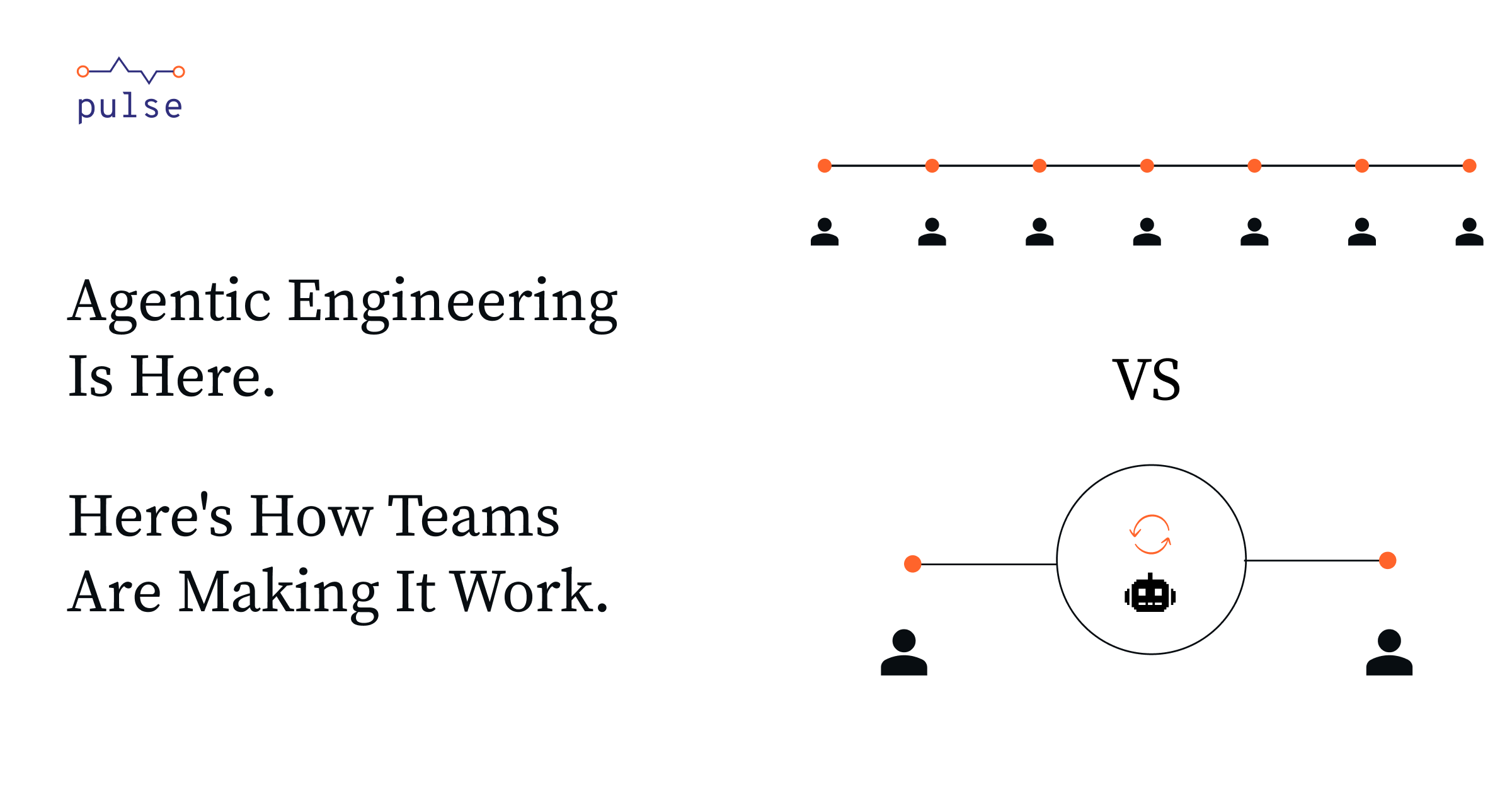
The real game-changer is multi-device simultaneous work. Previously, an SSH connection meant you were working from one terminal. Remote Control lets you send messages to the same session from your terminal, browser, and phone at the same time. Fire off "run the tests too" from your phone during a meeting, then check the results on your terminal when you're back at your desk.
Every.to's Dan Shipper noted that cloud Claude Code "still has rough edges for daily use" after testing it, but Remote Control solves the problem from a different angle. Instead of setting up a new environment in the cloud, you just keep using your already well-configured local setup.
Quick Start Guide
- Check Your Claude Code Version
Runclaude --versionin your terminal. Make sure you're on the latest version. - Log In with a Pro or Max Plan
Run/loginin Claude Code and authenticate with your claude.ai account. You need a subscription plan, not an API key. - Start a Remote Control Session
In an existing session, type/remote-control(or/rc). To start fresh, use theclaude remote-controlcommand. - Scan the QR Code
Press spacebar to show the QR code, then scan it with the Claude app on your phone or your camera. You can also manually open the displayed URL in a browser. - Continue Working from Anywhere
Messages sent from your phone get executed by Claude Code on your computer. You can switch between terminal and phone freely. If your network drops, it auto-reconnects when your computer comes back online.
Known Limitations
Your terminal must stay open — closing it ends the session. If your network drops for roughly 10+ minutes, the session times out. Team and Enterprise plans aren't currently supported.
Want it on for every session automatically?
In Claude Code, go to /config → set Enable Remote Control for all sessions to true. You won't need to type /rc every time.